
Live on phone or PC: clear chat and clear singing—without a messy virtual mixer
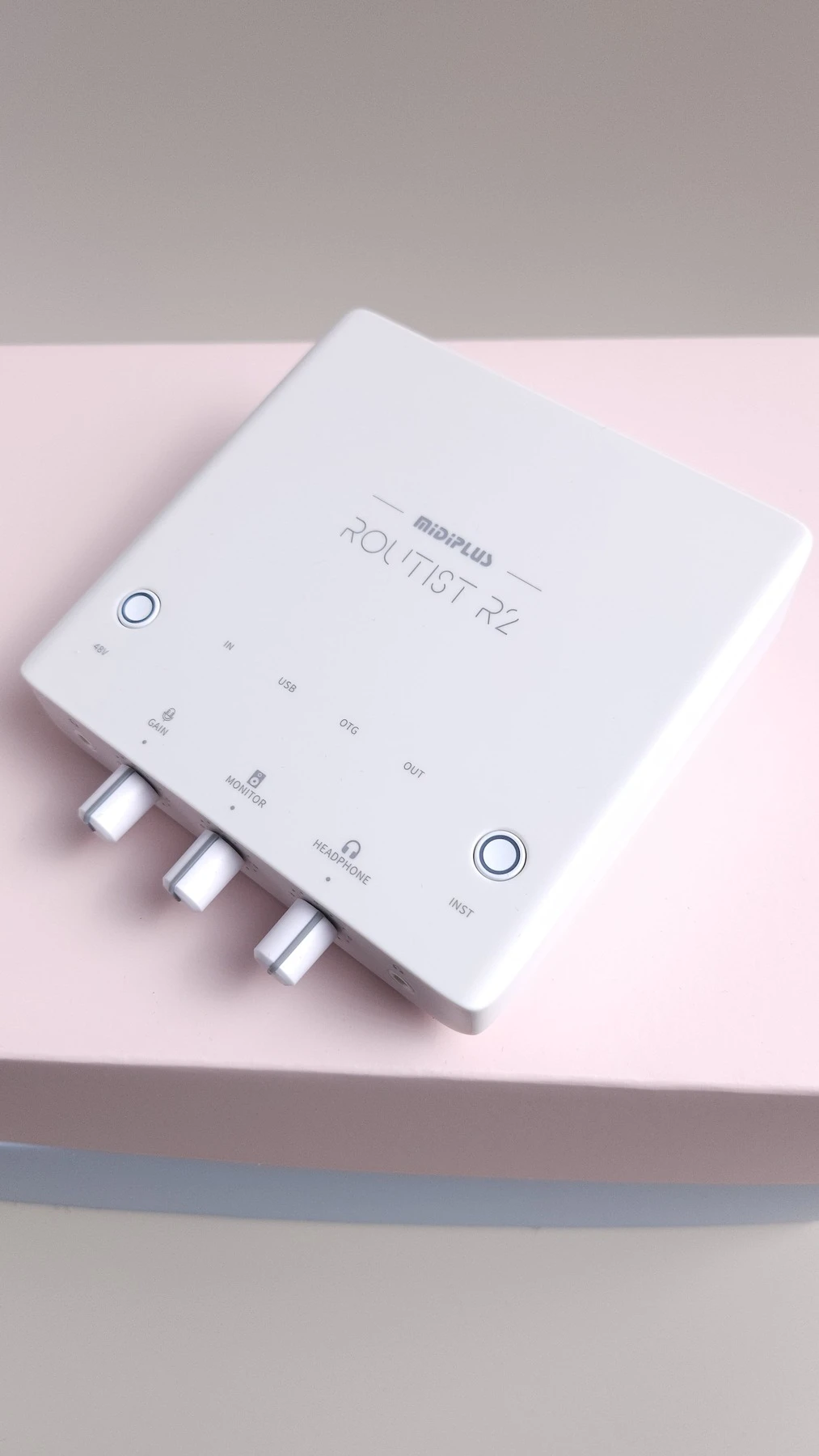
Heads up: this post is from OTORELAY. We sell the midiplus Routist R2 and built Mixnelo as companion software for it.
Who this is for: streamers on phone or PC who want less fan/AC noise when they talk, clearer vocals when they sing (ideally with accompaniment), and zero interest in learning a full virtual mixer.
otorelay built a simple Windows app with AI (Mixnelo) for live audio—noise reduction, clear talking, clear singing. It works for PC streams and phone streams. The effects are already dialed in, so you just turn things on. Latency is near zero, so monitoring yourself while you sing doesn’t drag behind the beat. Right now it only supports the midiplus Routist R2 interface. Typical flow: Chat + noise reduction for talking; Singing + a little reverb for songs; point Spotify / YouTube Music / Chrome at the music output; plug your phone into the OTG port on the back. OTG goes both ways: you hear the phone feed in your headphones, and the PC sends your talking, singing effects, and accompaniment to the phone so it can go live—without echo on guest / PK calls.
Mixnelo is not official midiplus software. What midiplus publishes publicly is mainly the driver. This guide only covers what you can see and click. It does not dig into plugin names or hidden processing chains.
Quick demo — clearer live chat + singing reverb on phone or PC (YouTube Short):
What headaches does Mixnelo try to solve?
Stuff people complain about a lot (samples, not a survey):
- Want a little reverb for singing on stream, install Voicemeeter, then latency is so bad you can’t sing.
- Voicemeeter feels way too complicated.
- You want to hear yourself, but the whole software stack is exhausting.
- Chat noise is loud; platform/OBS denoise kicks in and eats your voice.
What you usually want is simple: clear talk + clear singing + hear accompaniment / phone audio + don’t drag the beat—not another virtual mixer course.
What are fair alternatives?
- TikTok LIVE Studio (PC): fine if the built-in tools are enough.
- Voicemeeter: strongest routing; steep learning curve; easy to add latency.
- Hardware FX: reverb pedals, etc.—more cables and setup.
- Our noise / mixer-style guide: if you need a fuller mixer-oriented setup (AudCore).
- Another brand’s own software: use it if you already bought that hardware.
If you’re on midiplus R2 (or buying one) and you want “effects already set, near-zero latency, only a few controls,” keep reading.
What do you need?
- Windows PC (x64). Buy the R2 from otorelay and you get download links for the official R2 ASIO driver and Mixnelo with your order
- Mic + headphones: condenser mics we recommend are Audio-Technica AT2035 or Lewitt LCT 240 Pro. Skip dynamic mics if you can—if you insist on a dynamic, add an sE DM1 Dynamite (inline preamp) first (more below)
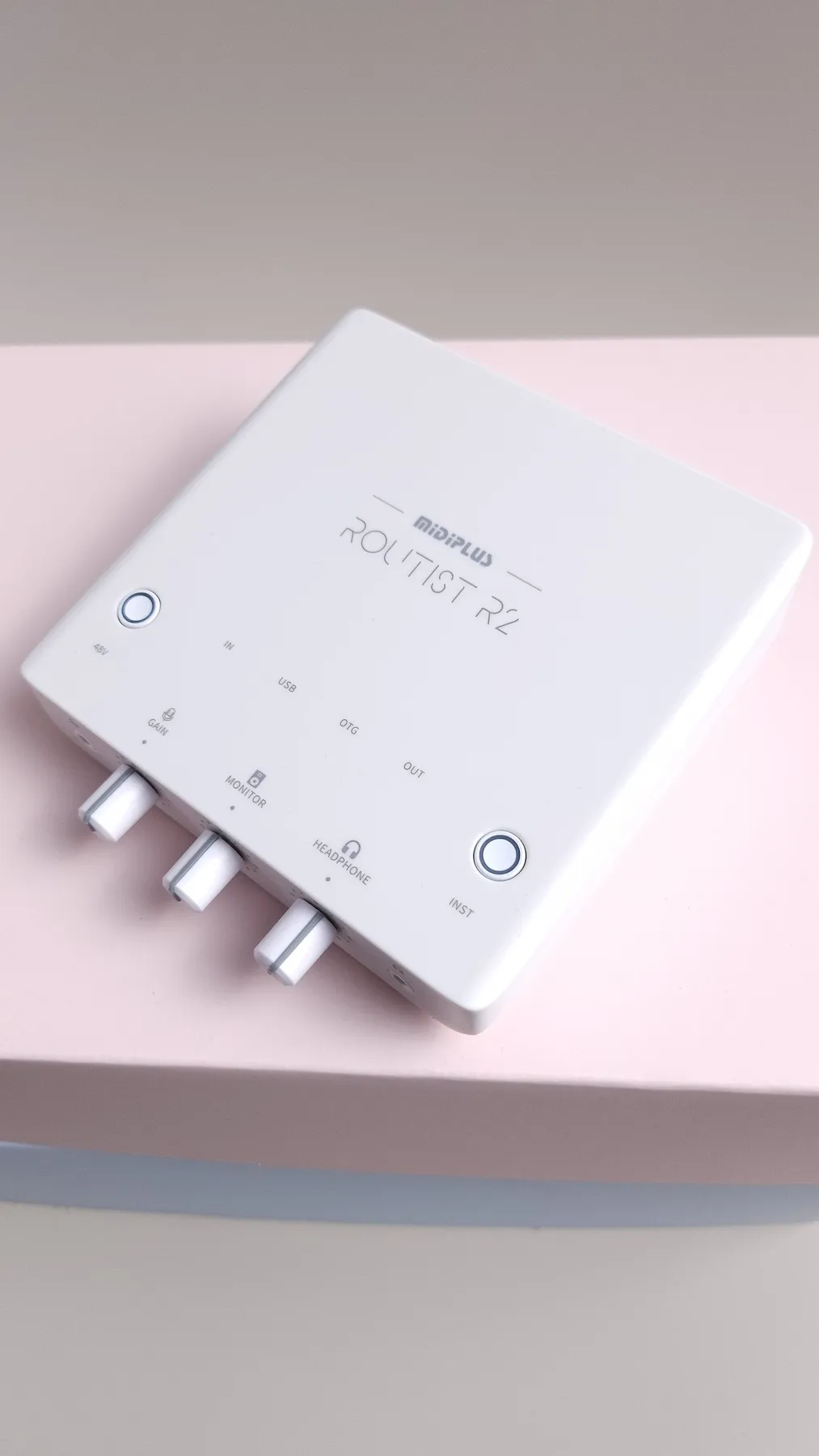
- midiplus Routist R2 (sold by otorelay; includes a 3.5 mm cable)
- Phone streaming: an OTG cable (works on iPhone and Android; Android often sounds worse because of OS limits)
- Mixnelo (simple AI-built app from otorelay; effects preset; near-zero latency; R2 only for now)
Which mics should you use?
Recommended condensers:
- Audio-Technica AT2035
- Lewitt LCT 240 Pro
They’re sensitive enough for R2 with 48V on—good for chat and singing.
We don’t recommend plugging a dynamic mic straight in. Dynamics are quieter; you’ll fight level and noise. If you already own one and must use it, put an sE Electronics DM1 Dynamite in front of the R2.
How do you set up phone live (clear chat and clear singing)?
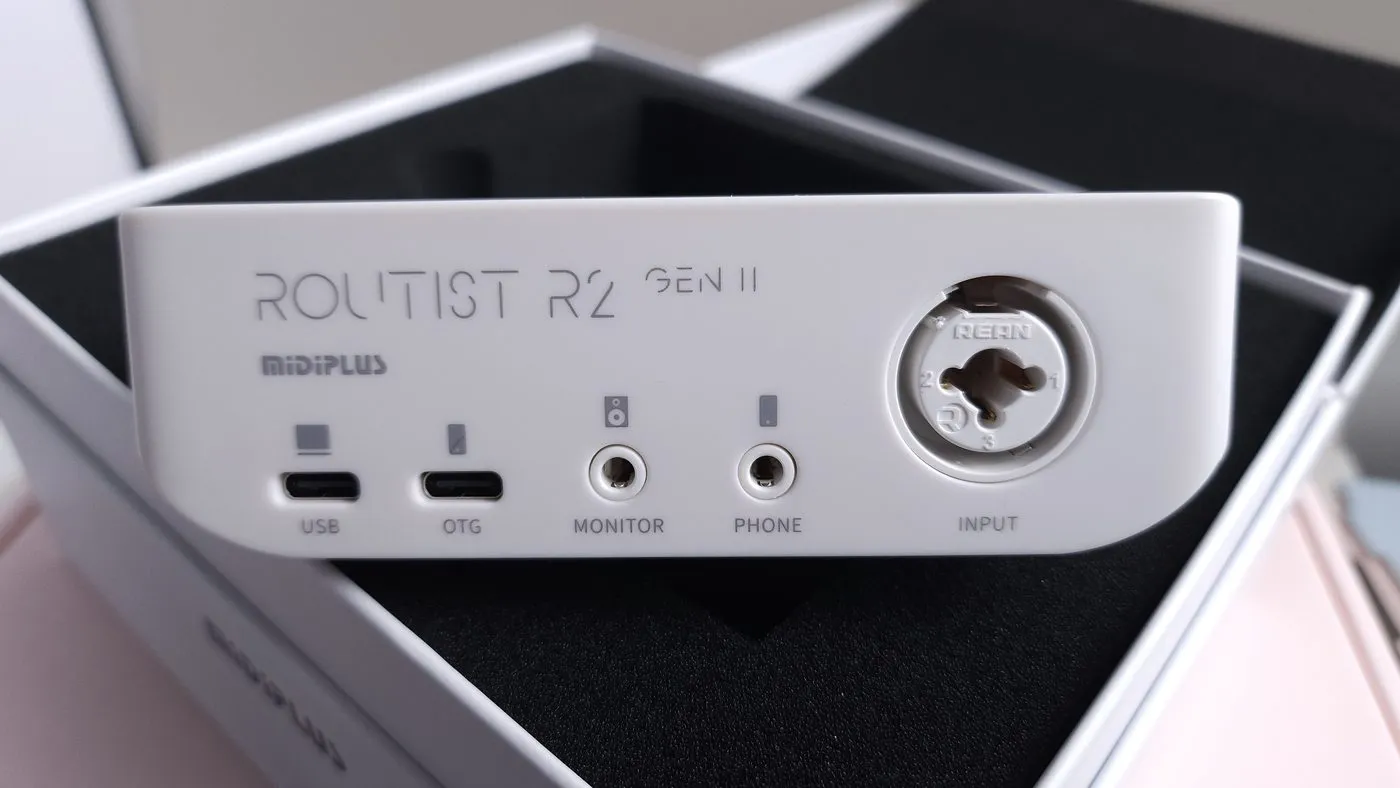
- PC USB into the USB port on the back of the R2; phone cable into the back OTG port (phone icon).
- Open Mixnelo, pick MIDIPLUS R2 up top until you see green Connected. Condensers (AT2035 / LCT 240 Pro): turn on panel 48V. Dynamics: sE DM1 first, then into R2.
- Talking: tap Chat, turn on Noise Reduction, start around 30%, then tweak—if your voice gets thin, back it off.
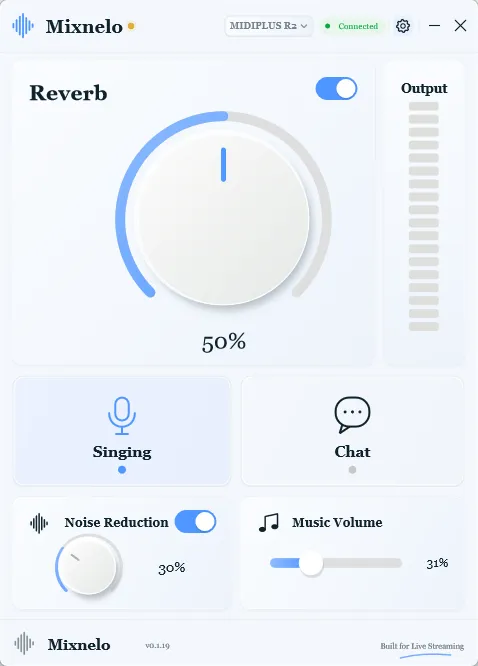
- Singing: tap Singing, turn on Reverb, start around 40–50%, tweak for the room.
- Headphones on. OTG is two-way: your Mixnelo output (talk, singing effects, accompaniment) goes to the phone for the live stream, and phone app audio comes back into your headphones. Guest / PK calls stay free of echo. Latency is near zero, so you won’t feel behind the beat.
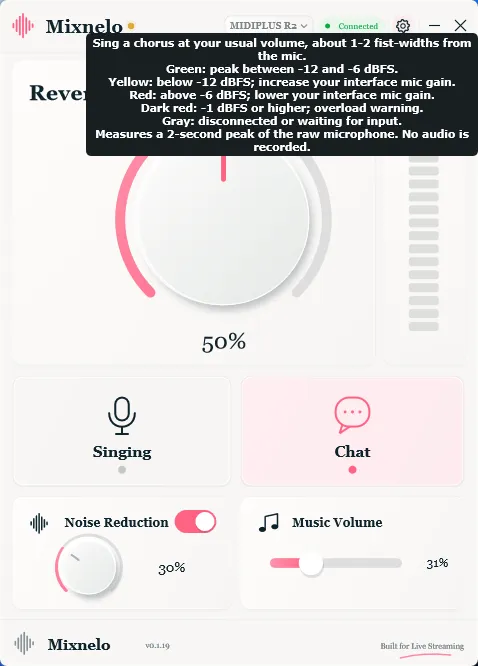
Watch the mic meter lights in the app (hover for the tip): at a normal distance (~1–2 fist-widths), aim for green on a chorus peak (about −12 to −6). Yellow → turn GAIN up; red → turn it down.
How do you sing with accompaniment (YouTube / Spotify / Chrome)?
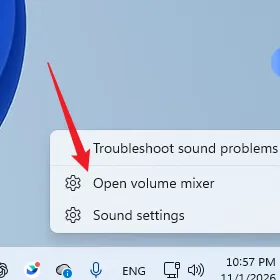
- Open the Windows volume mixer (right-click the speaker icon on the taskbar → Open volume mixer).
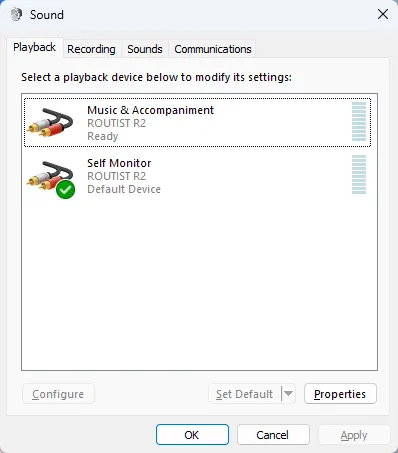
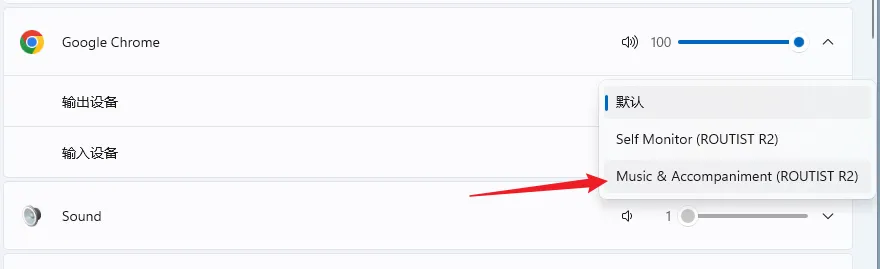
- Find Chrome, Spotify, YouTube Music, etc., and set that app’s output to Music & Accompaniment (ROUTIST R2)—not Self Monitor.
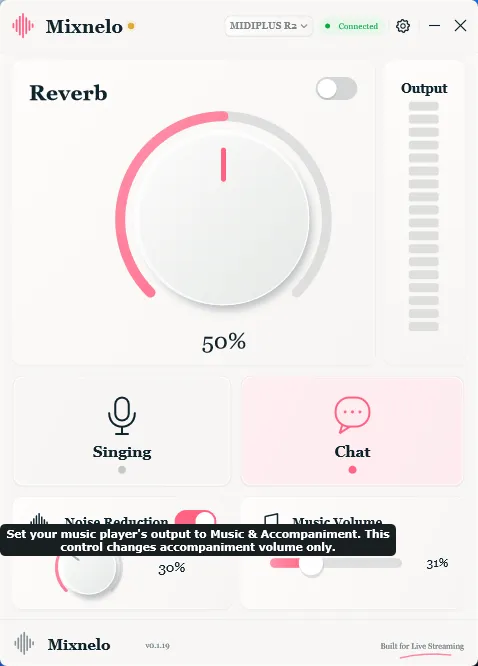
- In Mixnelo, use Music Volume for accompaniment only.
- Switch to Singing, turn Reverb on, sing.
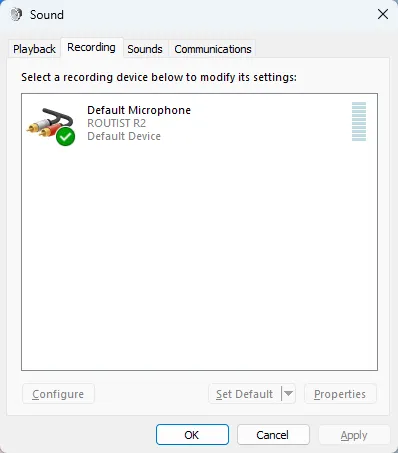
For capture/streaming from this interface, Windows recording should be Default Microphone (ROUTIST R2). Default playback is often Self Monitor—that’s the PC self-hear path, not the Music Volume slider.
How do you do a PC-only stream (no phone)?
Same Mixnelo controls: Singing / Chat, Reverb, Noise Reduction, Music Volume. Skip OTG. Still pick Default Microphone (ROUTIST R2) as the input.
Don’t mix up the hardware knobs and the software
| Thing | What it does |
|---|---|
| Panel GAIN | Mic gain — match the app meter to green |
| Panel MONITOR | Speakers via the included 3.5 mm cable |
| Panel HEADPHONE (and related PHONE jack on the back) | Headphones |
| App Music Volume | Only accompaniment level |
| Windows Self Monitor | Default PC playback / self-hear (not Music Volume) |
What will you actually touch in Mixnelo?
Effects are already set. Day to day you only need:
- Device: MIDIPLUS R2
- Reverb (knob + on/off)
- Singing / Chat
- Noise Reduction (on/off + %)
- Music Volume (accompaniment)
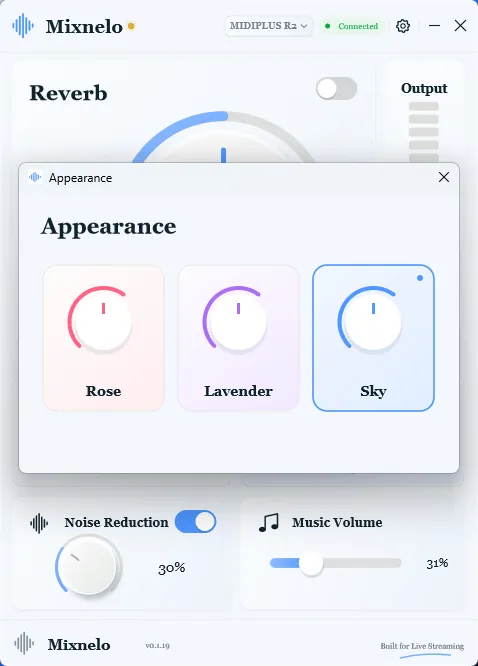
- Appearance: Rose / Lavender / Sky
What we don’t promise: we don’t bypass TikTok (or other) platform denoise; we don’t promise “studio booth” sound; multi-guest / complex routing → Voicemeeter or the mixer-style guide; Mixnelo is not official midiplus software.
Soft close
If you’re done fighting virtual mixers and just want clear chat, clear singing, accompaniment you can hear, and near-zero delay—plug in the R2, open Mixnelo (effects ready, near-zero latency), and run the three setups above. Prefer AT2035 or LCT 240 Pro; dynamics need an sE DM1.
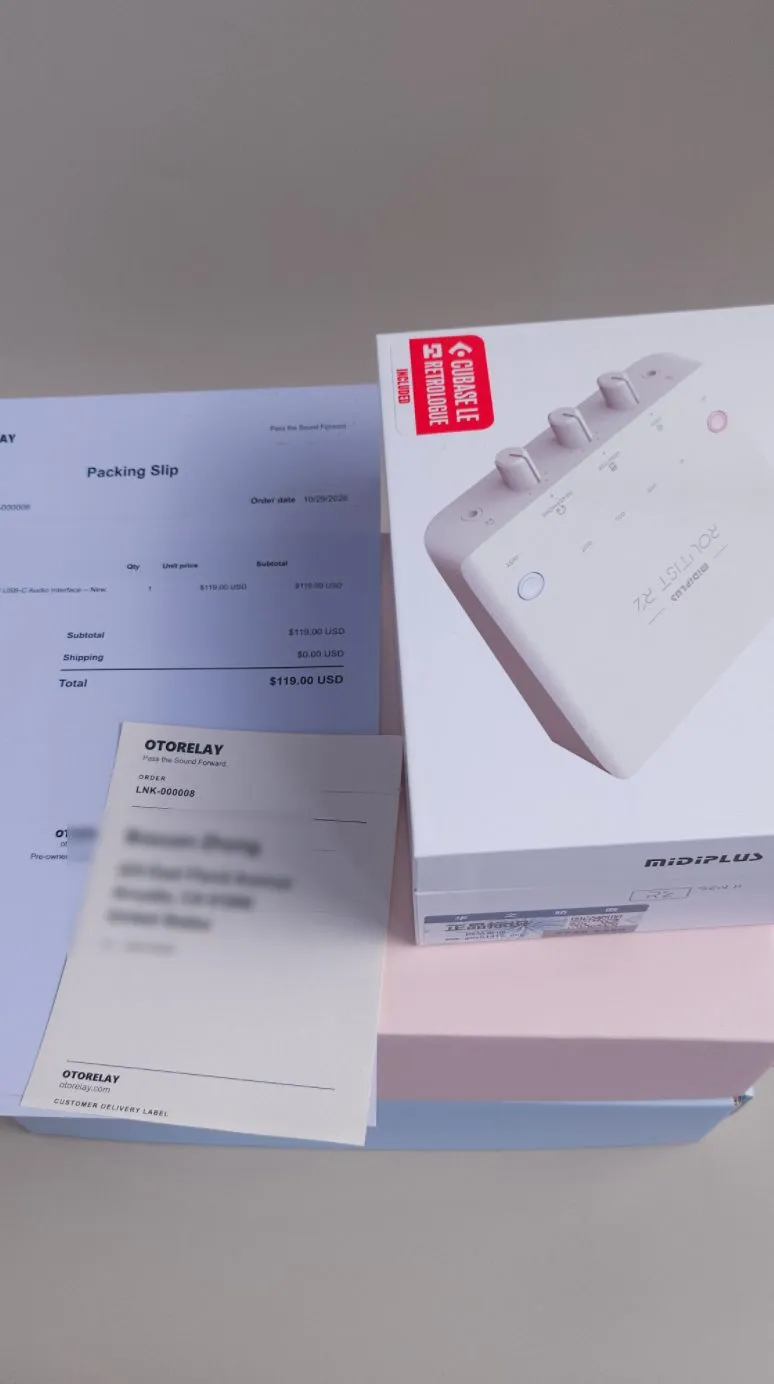
A high-value live-streaming audio setup—clear capture on PC or phone, and the price is fair (midiplus Routist R2, $119 with free shipping).
- Interface: midiplus Routist R2 at OTORELAY — $119, free shipping
- Software: Mixnelo — simple AI-built app from otorelay, R2 only for now (buyers get the Mixnelo download link with their R2 order)
- More mixer-oriented: Remove background noise on stream (AudCore)
Frequently asked questions
Is Mixnelo official midiplus software?
No. Mixnelo is a simple Windows app built by otorelay for the midiplus Routist R2. What midiplus publishes publicly is mainly the driver.
Which mics work best with R2 and Mixnelo?
Recommended condensers are the Audio-Technica AT2035 and Lewitt LCT 240 Pro with 48V on. Dynamic mics are quieter on R2; if you must use one, add an sE Electronics DM1 Dynamite inline first.
Can I use Mixnelo for phone live streams?
Yes. Run Mixnelo on a Windows PC with the R2, plug the phone into the R2’s OTG port, and use Chat/Singing plus noise reduction or reverb as needed. OTG sends the PC mix to the phone for streaming and returns the phone feed to your headphones—without echo on guest / PK. Works for PC-only streams too if you skip OTG.
Does Mixnelo add a lot of latency?
otorelay designed Mixnelo for near-zero latency monitoring so singing along to a beat does not drag. Always check with headphones before you go live.
Where can I download Mixnelo?
There is no public download page yet. When you buy the Routist R2 from otorelay, the order includes download links for the official R2 ASIO driver and Mixnelo.
Gear from OTORELAY
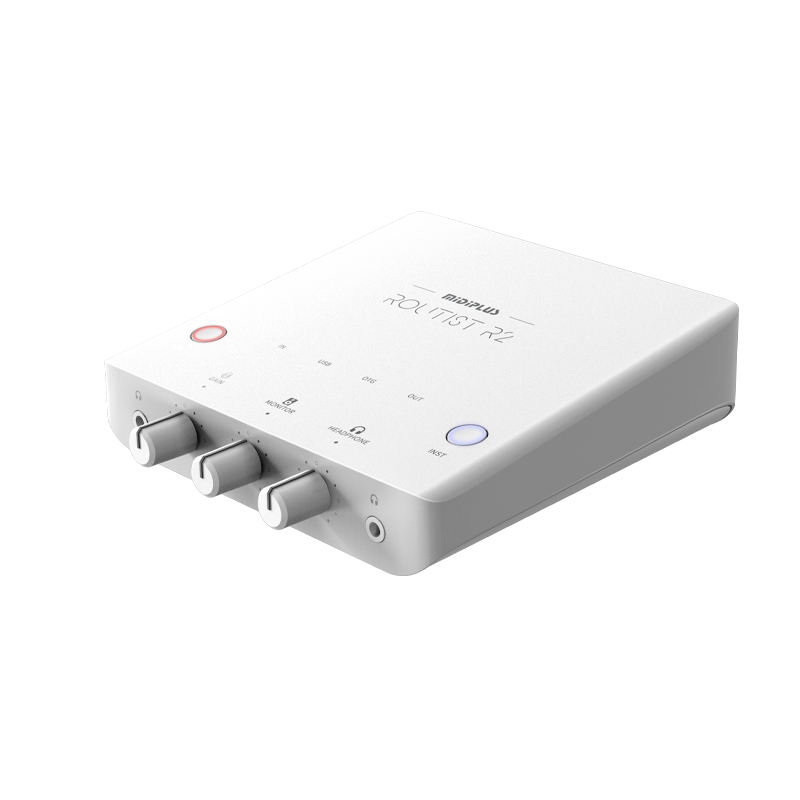
MIDIPLUS Routist R2 GEN II USB-C Audio Interface – New, Phone & Computer Ready
$119.00
New
View on OTORELAY
Check listings for current price and availability.