
How to Remove Background Noise and Make Your Voice Clearer on Stream (Free Tools)
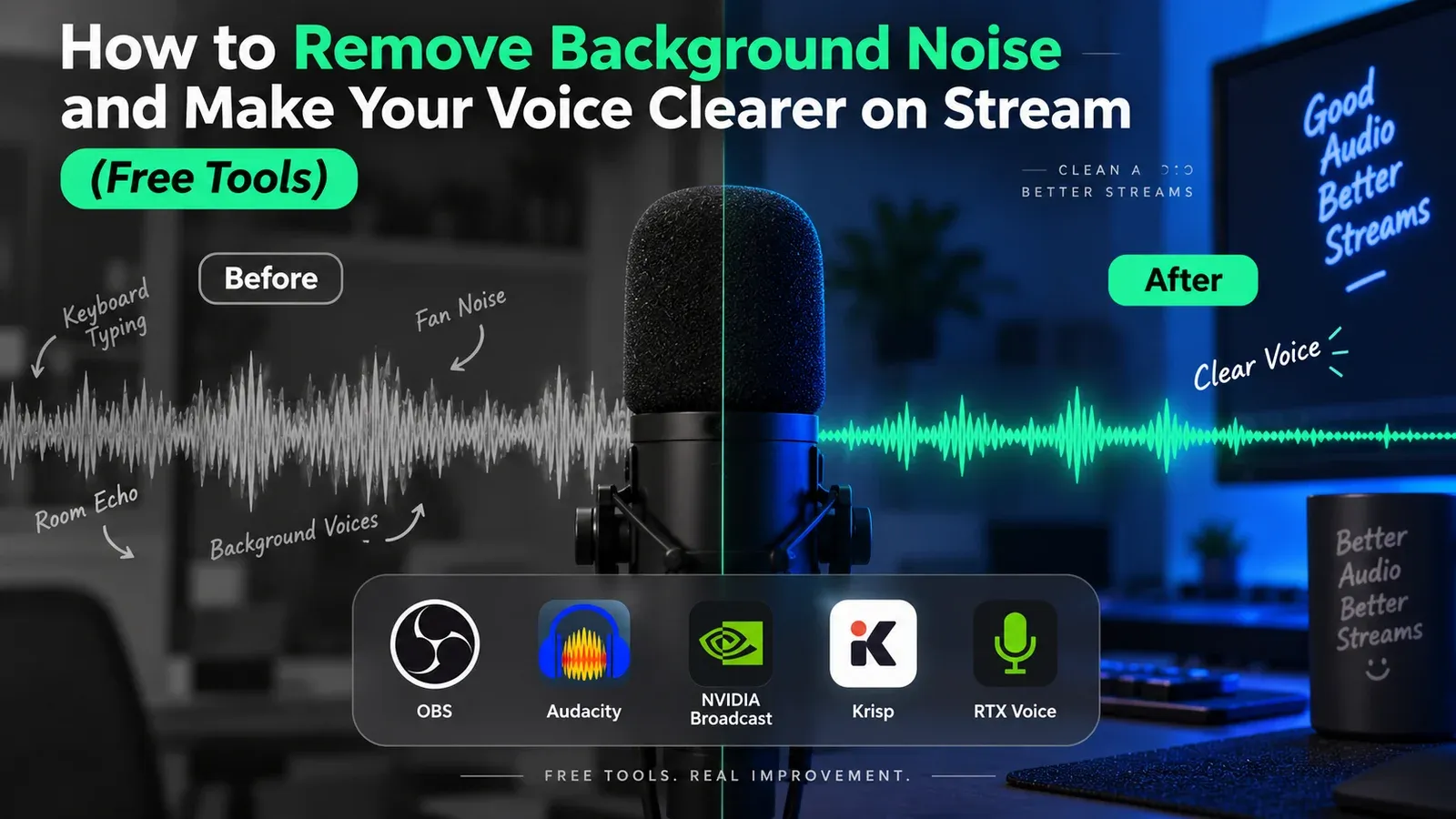
Common stream audio problems
- Loud keyboard clicks. Your noise gate is on, but the moment you start talking, the clicks come through anyway.
- Mic picking up keyboard and room noise. AI noise removal helps, but it can make your voice sound robotic.
- Your voice is too quiet. Game audio or music drowns you out, and your teammates can’t hear you.
- Voicemeeter is too complicated. A lot of people spend hours on it and still can’t get it working.
In this guide, we’ll use AudCore, a free mixer app for Windows (the installer is under 10 MB), with an affordable audio interface to noticeably improve all of these.
What is AudCore?
AudCore is a free, real-time audio mixer for Windows made by an independent developer. It’s lightweight (official tests show about 0.5% average CPU use) and comes with built-in effects: noise suppression, compression, de-essing, music ducking, and reverb. The interface is available in English.
What you’ll need
- An audio interface, a mic, and headphones (we’re using the MIDIPLUS R2 in this guide)
- A Windows PC
- An OTG cable, if you want to stream from your phone
Install AudCore
- Download the installer from GitHub.
- The installer isn’t code-signed, so Windows may show an “Unknown publisher” warning. First, check the file’s SHA-256 hash in PowerShell against the one on the download page. If they match, click “More info,” then “Run anyway.”
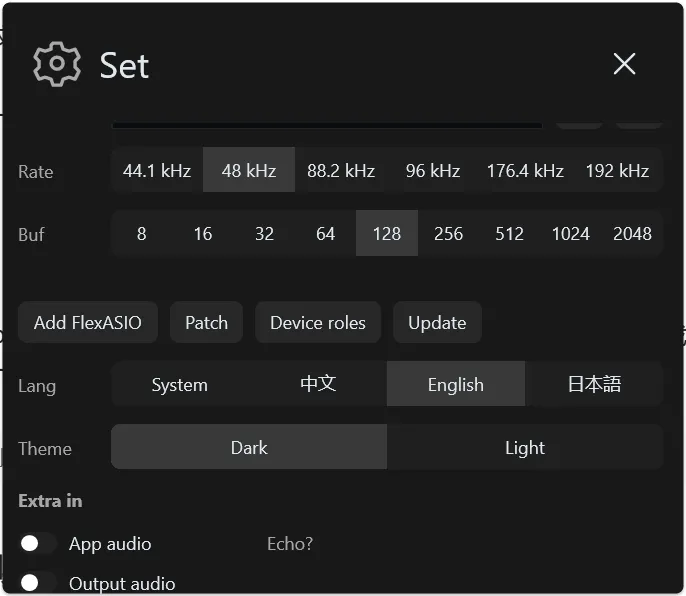
- Open Settings. We recommend 48 kHz with a buffer size of 128. Keep it at 256 or lower, or you’ll hear a delay when monitoring yourself.
Remove background noise
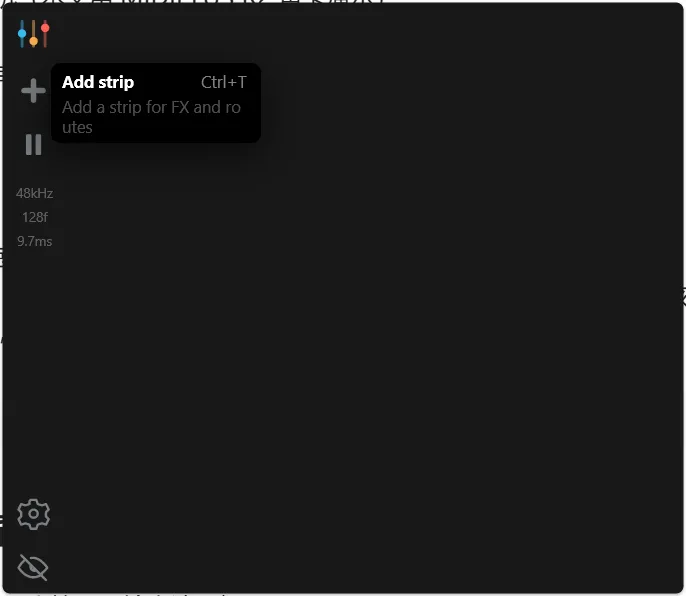
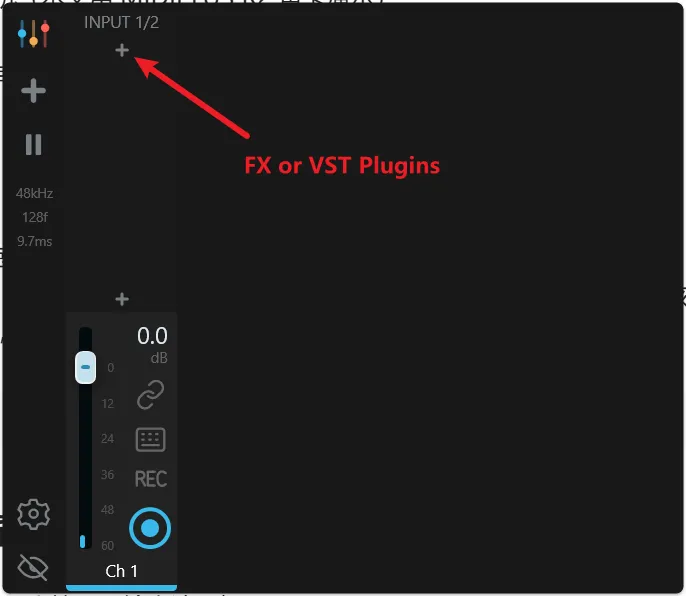
- Click the + in the top-left corner to add a new channel.
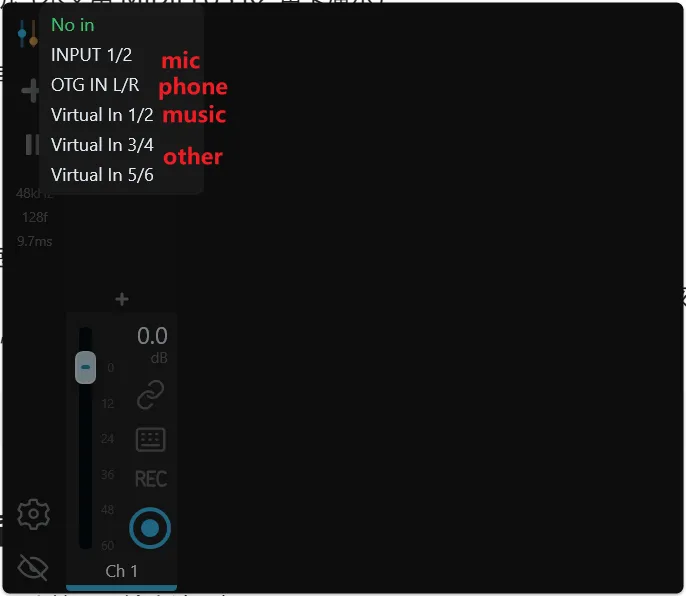
- Pick an input for the channel. This is the signal coming in: your mic, audio coming back from your phone over OTG, or one of three virtual channels you can play music through. For example, set YouTube Music’s output to Virtual In 1/2, and it all goes out to your stream together.
- Add effects here. AudCore supports VST plugins, and its built-in effects are plenty for voice.
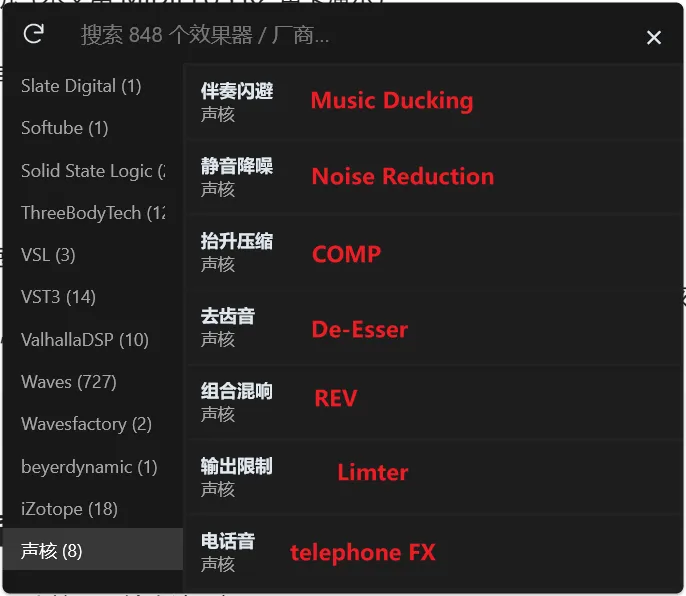
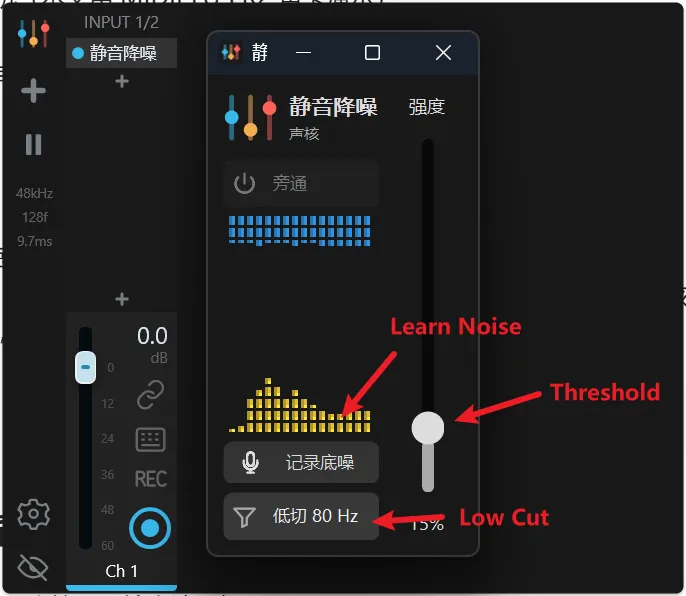
- Now let’s add noise suppression.
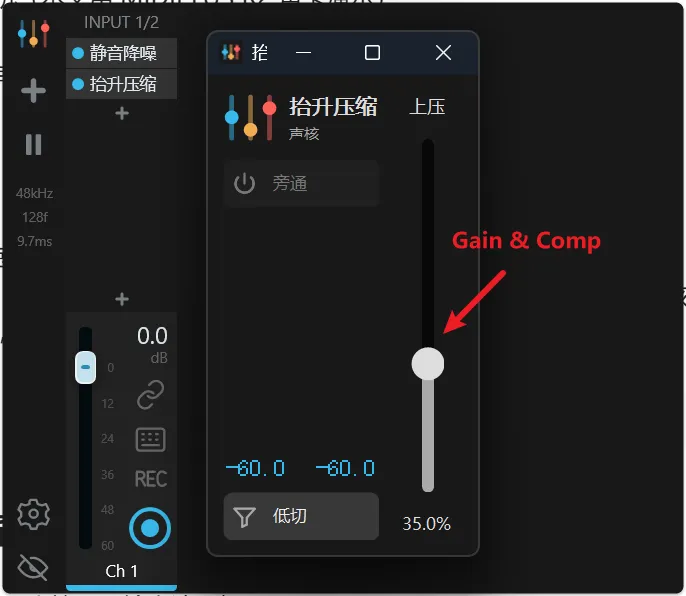
Use a compressor for a clearer, steadier voice
- Add the Compressor. It brings quiet parts up and loud parts down, so you won’t suddenly blast your viewers’ ears.
Add background music without drowning out your voice
- Add a new channel for music and set its input to Virtual In 1/2. In YouTube Music, set the output to the same channel.
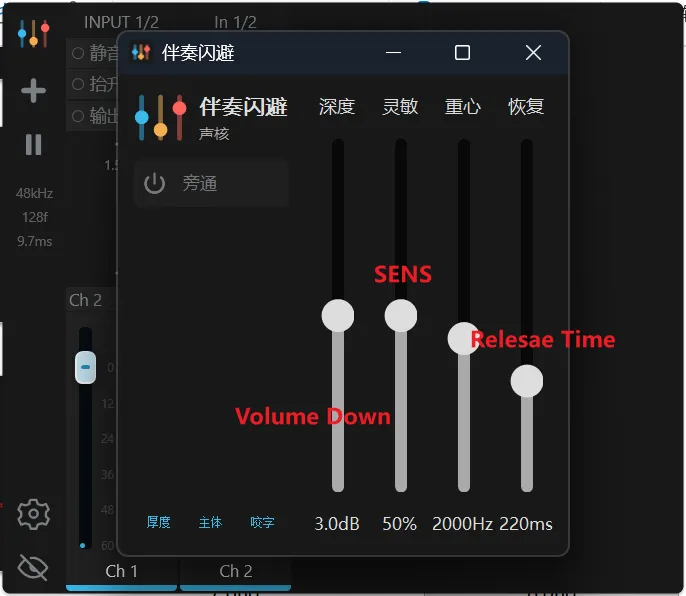
- Add Music Ducking. When you talk, the music automatically gets quieter.
Prevent clipping with a limiter
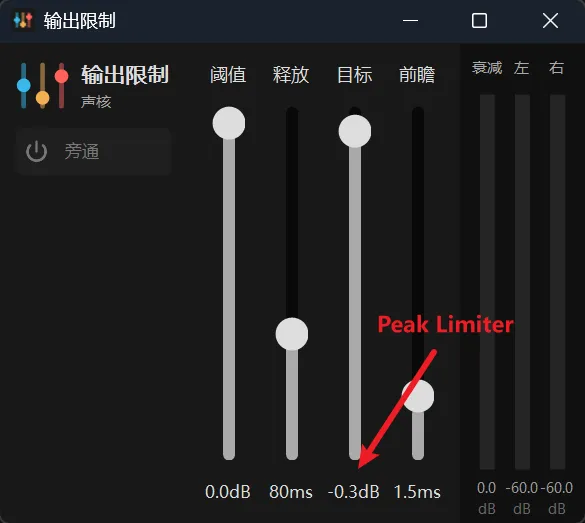
- Add the Limiter plugin to keep your audio from clipping, and set the True Peak level.
Choose your output
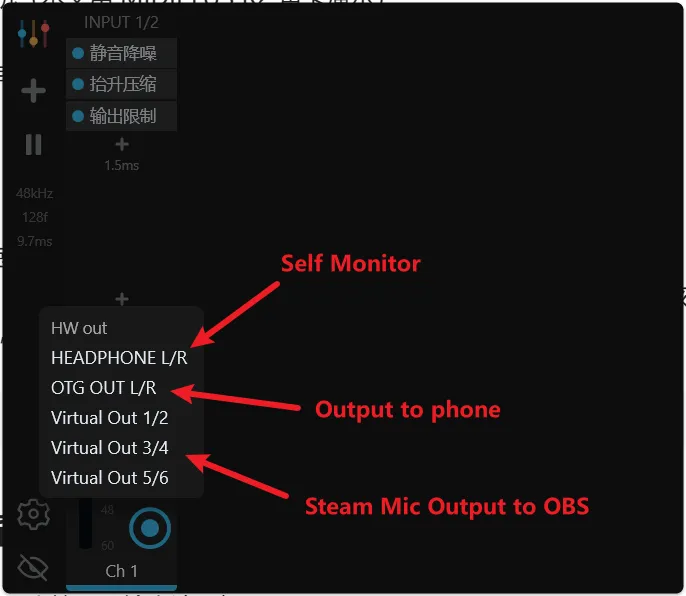
- Pick where the sound goes. You can send it to your headphones, or to your phone over OTG to stream from your phone. You can also send it to another channel and select that as the mic in OBS or any other streaming app.
Wrapping up
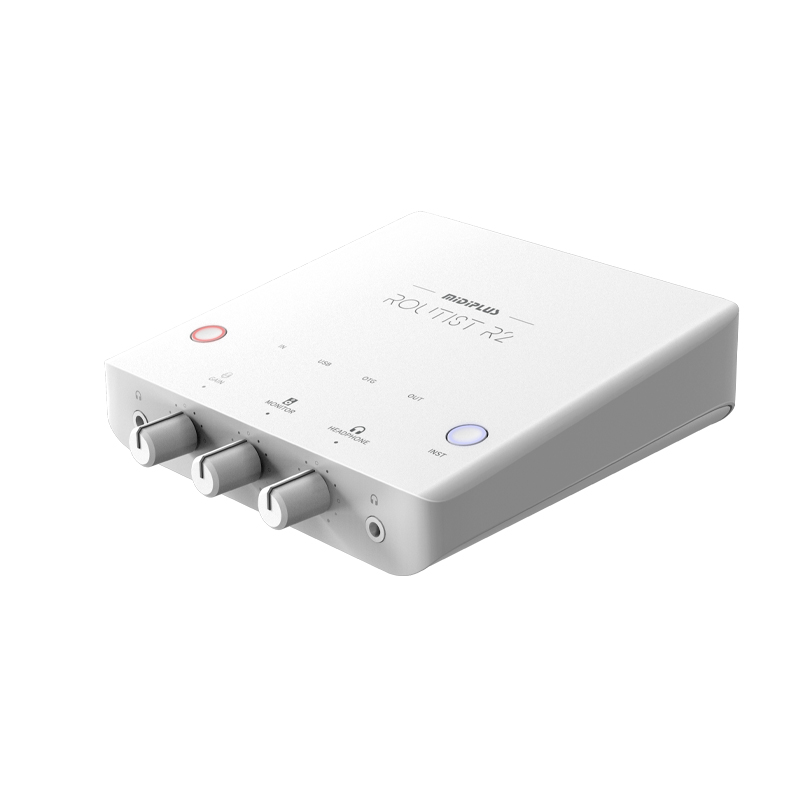
That’s it for this guide. If you found it helpful, follow us on social media. We regularly share tips to help your streams sound better. This demo used the MIDIPLUS R2 audio interface, available at OTORELAY for about $119 with free US shipping.
Gear from OTORELAY
MIDIPLUS Routist R2 GEN II USB-C Audio Interface – New, Phone & Computer Ready
$119.00
New
View on OTORELAYMIDIPLUS Routist R2 GEN II USB-C Audio Interface – New, Phone & Computer Ready
$119.00
New
View on OTORELAYMIDIPLUS Routist R2 GEN II USB-C Audio Interface – New, Phone & Computer Ready
$119.00
New
View on OTORELAYCheck listings for current price and availability.